Skip to content
Click Workforce

01Works with no signal

No signal? Still works.

Operatives clock in and out whether or not the phone has coverage. Everything is saved on the phone. It sends the next time the app is opened with signal, and in the background when the phone allows. Nothing is lost and nothing is sent twice.

Most sites have patchy signal at best. Basements, cuttings, rural compounds, the far end of a haul road. An app that needs a connection to clock in is an app that gets ignored, and then you're back to paper.

Click Workforce is built the other way round. The phone is the record. Clock-ins, clock-outs and photos are saved locally first. They send the next time the app is opened with signal, or when the operative does something new, like clocking in or signing a document. The phone also sends in the background when iPhone or Android lets it. The phone tells the operative honestly what's still waiting to send.

The phone needs signal once, when the operative first signs in, to download your sites. After that, clocking in never waits for a connection.

  • Clock in, clock out and photos all work with no signal
  • Sends when the app is next opened with signal, and in the background when the phone allows
  • The phone shows what's waiting to send, so nobody is guessing
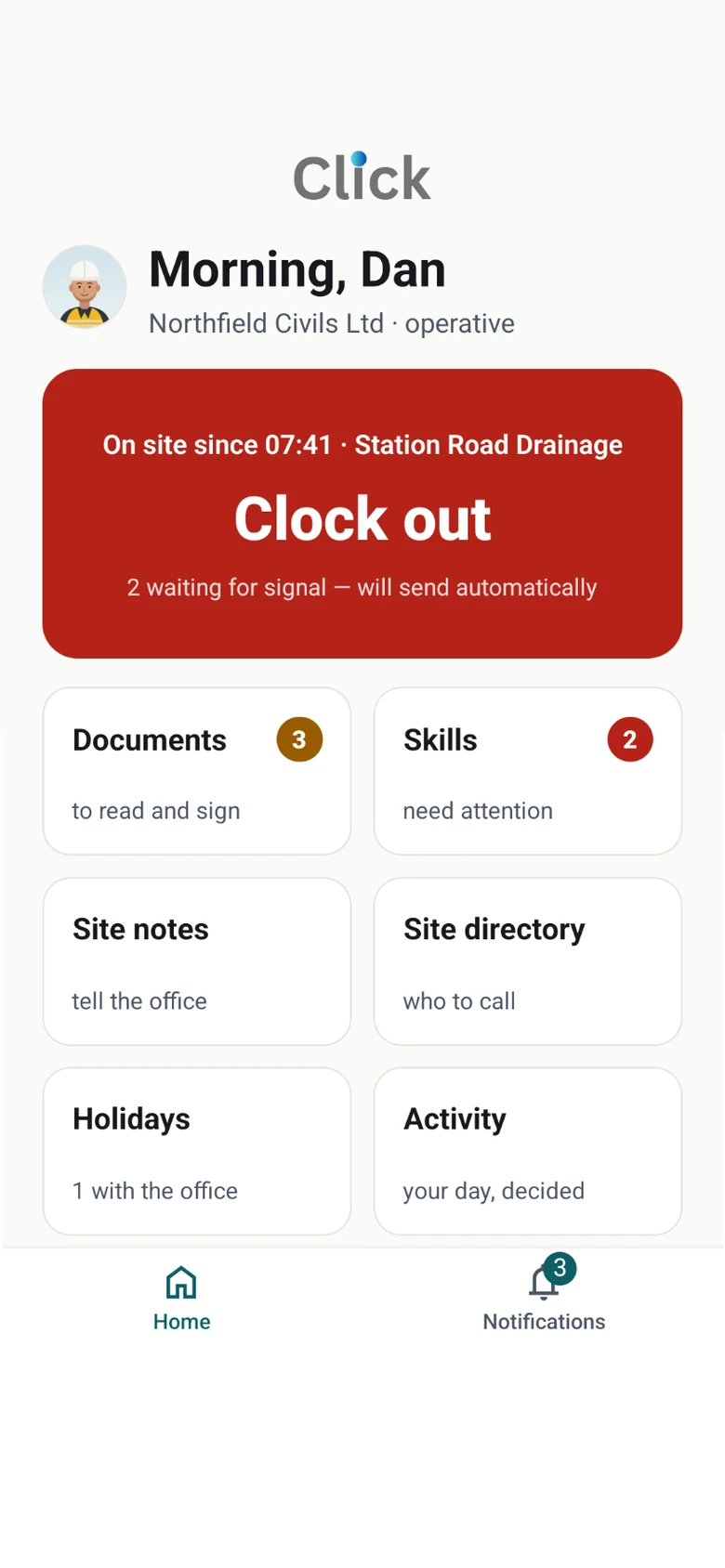
Click Workforce home screen, on site, with the operative's photo, two clock events waiting for signal, and three unread notifications on the bottom bar

Saved on the phone until it can send
Clock events wait safely on the phone until they can send.

02Clock in and out with geofence

Clock in on the phone. Checked against the site boundary.

Each site has a boundary drawn on a map. When someone clocks in, the app checks they're inside it. Outside the line, the clock-in still goes through, but it's flagged for the office to look at.

You draw each site's boundary once on the dashboard. From then on, every clock-in and clock-out records where the phone was, how accurate the GPS fix was, and whether that puts the operative inside the boundary.

A clock-in from the wrong side of the line isn't blocked and isn't quietly accepted. It's raised as a flag with the map and the photo, so someone in the office can decide. The operative sees a plain message on the phone telling them a supervisor will look at it.

Each site has a tolerance, 50 metres unless you change it, so a GPS wobble at the gate doesn't raise a flag. A clock-in with no GPS fix at all is flagged too.

  • Draw each site boundary once on the dashboard
  • Clock-ins outside the boundary are flagged, never silently accepted
  • Every clock event keeps the time, the location and the GPS accuracy

Outside the boundary — flagged for review

The clock-in goes through. The office gets to decide.

03Photo on clock-in

A face with every clock-in.

The app takes a quick photo from the front camera as part of clocking in and out. No gallery uploads. The office can see who was there, not just whose phone was.

Buddy clocking is the oldest trick there is. A phone can be handed to a mate; a face can't. The photo is taken there and then, from the camera only, so a saved picture can't be used instead.

Photos are compressed on the phone so they send on one bar of signal, and they sit next to the map on any flagged clock event. Most of the time nobody needs to look at them. When you do, they're there.

  • Camera only, so it can't be a saved photo
  • Compressed on the phone and sent with the clock event
  • Shown next to the map on every flagged clock-in

Front camera, taken on the spot

One tap. Gloves on. Ten seconds.

04Site kiosks

A code at the gate. Proof the phone was there.

On larger sites, a tablet at the gate shows a QR code that changes every 30 seconds. Operatives scan it with their phone as they clock in, then take the photo as usual. The scan is proof the phone was at the gate.

Under a steel frame or in a tunnel, GPS can't always say where a phone is. A scan at the gate can. The tablet shows a QR code that changes every 30 seconds. The operative scans it with their phone as they clock in, then takes the photo as usual.

Any tablet with a web browser will do. The kiosk is a web page, not an app. You can require the scan at sites that have a kiosk.

Site kiosks are for larger sites. They're switched on per company and set up as part of your contract, so talk to us.

  • A QR code at the gate that changes every 30 seconds
  • Any tablet with a web browser: it's a web page, not an app
  • Require the scan at sites that have a kiosk

The code on the gate tablet changes every 30 seconds

Scan at the gate, then the photo as usual.

05Flag queue

Anything odd goes to a person, not to payroll.

Outside the site boundary, no GPS fix, a clock-in on a day booked as holiday: each one lands in the flag queue with the map, the photo and the details. Someone in the office chooses Approve or Don't count, with a reason, and that decision is kept.

Timesheets go wrong at the edges: the clock-in from the lay-by, the phone with no GPS fix, the clock-in on a day somebody had booked off. Paper hides those. The flag queue puts each one in front of a person with everything they need to decide.

Each flag is one compact row: the person, what they claimed, the site, the reason, the time they claimed, and how far outside the site boundary the phone was, such as "3.5 km outside". Most flags are clock-ins, but a clock-out, a signed document, a card or certificate sent in, or a site note can be flagged too. The map and the photo open under the row when you need them, and the map always shows both the site and where the phone was. Filter by site and by reason, or tick several flags and decide them together with one reason. Each decision is still recorded on its own.

Nothing reaches payroll while a flag is open: a row with an open flag can't be approved. Every decision records who made it, when, and why. Operatives can see what happened to each day in their own activity list, so there are no surprises on payday.

Forgotten clock-outs, days over 12 hours and very short days are picked out at the top of the Hours page, so they're dealt with before anything is approved.

  • Nothing reaches payroll with an open flag
  • Decide several at once, with each decision kept: who made it and why
  • Operatives see the outcome on their phone

The map and photo open under the row

Approve it or don't count it, with the evidence in front of you.

06Approved hours and locked CSV export

Approved hours, locked, as a CSV.

Once the period's hours are approved they're locked, and you export clean CSV files that your payroll can import or work from. Click Workforce doesn't replace your payroll and doesn't try to. It supplies accurate, approved hours.

Clock events roll up into hours per person, per day, per site, split into basic, overtime, weekend and holiday under your own pay rules: rounding, breaks and overtime thresholds. If you only pay for set hours, a standard day counts only the time inside them. Hours show on the dashboard within about a minute of the phone sending a shift, and update again when a flag is decided. Nobody has to press anything.

Before the period is approved, an admin can correct the times on a row. The phone's original times are kept beside the correction. Once you approve, the rows lock and can't be edited at all. Anything found later is recorded as a separate adjustment, so the original never changes.

The export is a detail file with one row per person per day, a summary per person, and a manifest of checksums. Export the same period twice and you get the same files, byte for byte. If you set day rates, the summary also carries each person's rate, days and total. Click Workforce doesn't do payslips, tax or holiday pay. It supplies the hours.

  • Your pay rules: rounding, breaks, overtime and a standard day
  • Locked rows can't be changed after approval
  • Same files, same numbers, every time you export

Approve, lock, export

Approved, locked and exported, ready for payroll.

07Office dashboard

Who's on which site, right now.

The dashboard shows who's clocked in on each site, how many flags are waiting, and who's on holiday today. It's a web page. Nothing to install in the office.

Open it on any computer in the office, or on a phone from the cab. The live view lists everyone currently clocked in, by site, with the time they arrived, and refreshes itself every 30 seconds. Alongside it sit the flags to review, and any card problems or unsigned documents among the people on site.

It's deliberately plain. Most days the answer to "is everything alright?" should take five seconds, and it does.

Add your people one at a time or import them from a spreadsheet. Office staff get their own sign-in and can turn on two-factor authentication. Admin, manager, office and supervisor are the standard roles, each with a fixed set of powers. You can rename them, or add your own roles, such as "Site Manager" or "Contracts Manager", each with one of the standard levels of access. Or make a custom role and tick exactly what it can do from a list of permissions, such as an "Engineer" role that can record plant servicing and nothing else. Admin powers are never on that list. Supervisors and managers can be limited to the sites they look after, and they then see only those sites' people and hours.

  • Who's on site now, refreshed every 30 seconds
  • Flags, card problems and unsigned documents at a glance
  • Your own role names, custom roles with the permissions you tick, and supervisors and managers limited to their sites

Everyone clocked in, by site

The office view. Any browser, no installation.

08Skills and certificates

Every card, in date, in one place.

Operatives photograph their CSCS card, tickets and certificates once, in the app. The office checks each one, sees who's in date for each site at a glance, and is warned before anything runs out.

Chasing card copies is a job nobody wants. The card is in a wallet in a van, the photocopy is in a drawer, and the expiry date is a surprise. With Click Workforce the operative photographs each card once and adds the dates. The cards belong to them and go with them from firm to firm, so a new start doesn't mean starting again.

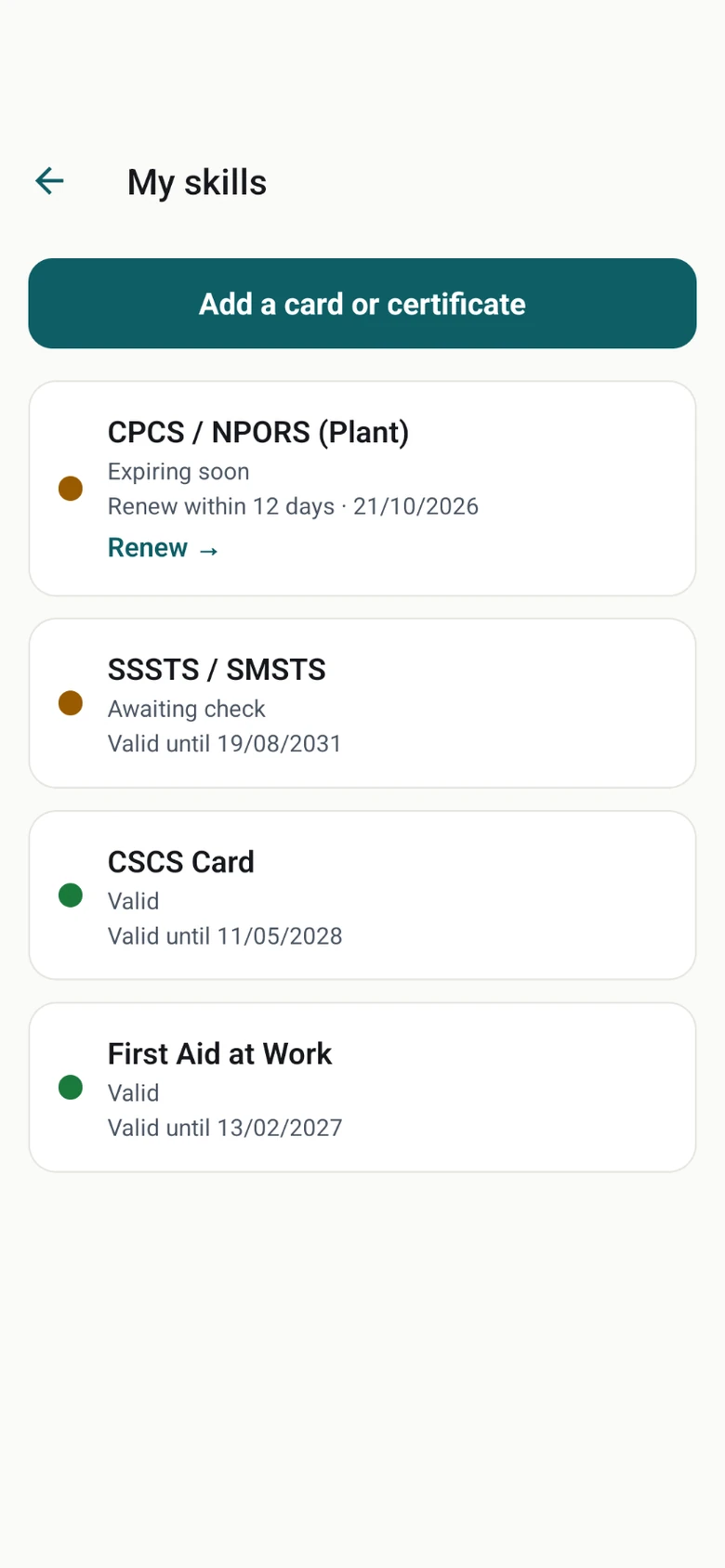
The office checks each card and marks it verified, or sends it back with a reason. The site skills matrix then shows every person on a site against the tickets that site needs: green if in date, amber if it runs out within 60 days or is still being checked, red if it's expired or missing. Managers get an email 60, 30 and 7 days before a card runs out, and the operative sees "Expiring soon" with a Renew link on their phone, so renewals happen in time.

  • CSCS, CPCS/NPORS, first aid, SSSTS/SMSTS, asbestos awareness and right to work as standard. Add your own.
  • Site skills matrix: green, amber or red for every person on every site
  • Warnings at 60, 30 and 7 days before a card runs out
Click Workforce skills screen listing the operative's cards with in-date, expiring and expired status

Warned before a card runs out

The operative's own cards. They go with them from firm to firm.

09Signed documents

RAMS read and signed on the phone. Proof kept.

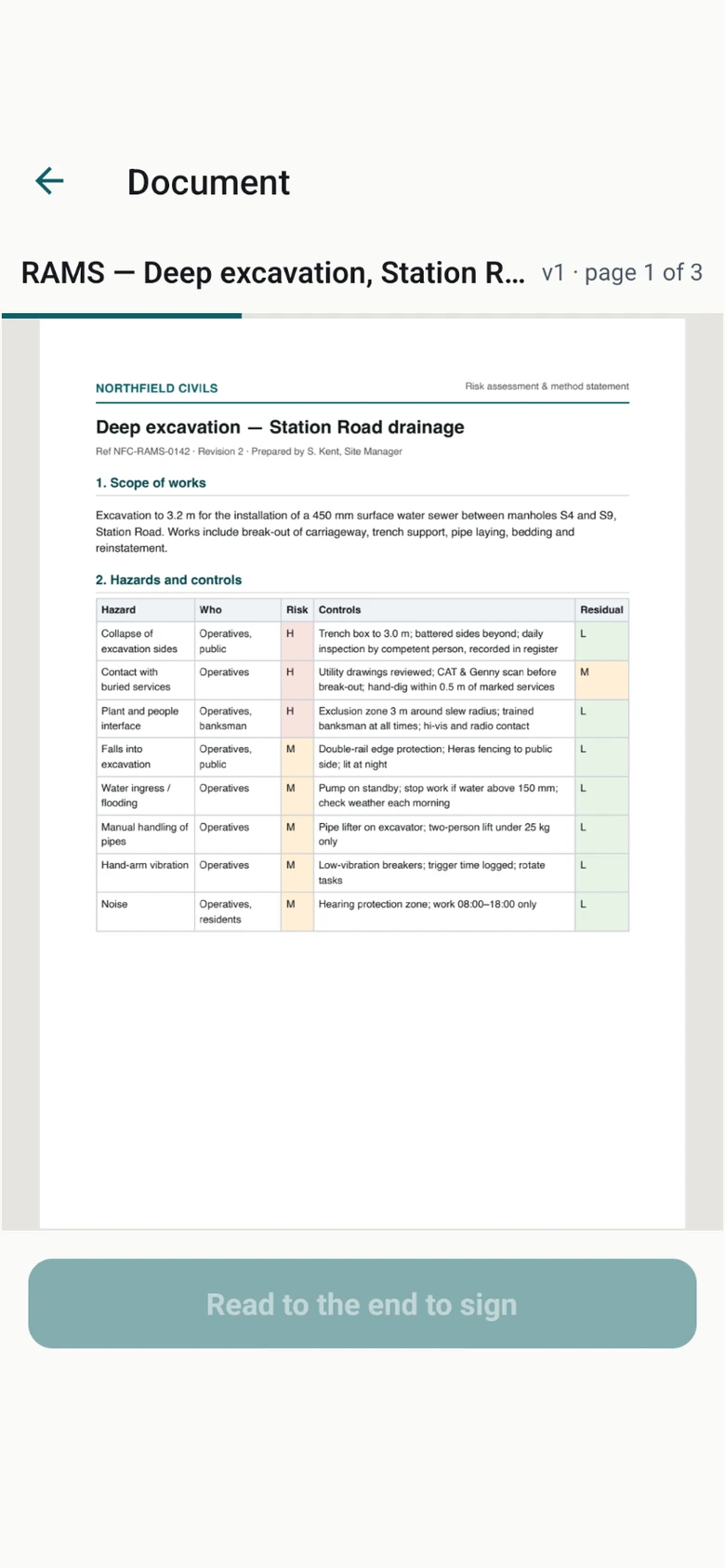
Upload a RAMS, toolbox talk or induction and send it to everyone on a site. Operatives read it on their phone, to the last page, and sign with their name. Works with no signal. The register shows who signed which version, and when.

A signature sheet on a clipboard proves somebody wrote a name. It doesn't prove they saw the document, or which version. Click Workforce sends the PDF to the phone. The sign button stays greyed out until the operative has scrolled to the last page, and signing means typing their name. With no signal the signature is saved on the phone and sent later, like everything else.

Send a document to one person, to everyone who works a site, or to the whole firm. Anyone new to a site gets it when they first clock in there. Or list who's expected at each site, and the site's RAMS and induction reach new starters before their first day, not after their first clock-in. The dashboard shows who's expected today. Upload a new version and everyone signs again; the old signatures are kept. The office sees who's outstanding against who's on site.

As standard, anyone with something unsigned is reminded at clock-in, but never stopped from clocking in: pay is never held up for paperwork. If your company switches it on, operatives sign their outstanding documents before they clock in instead. The app lists what's unsigned and they sign it in the usual way. It never asks at clock-out. Documents download while the phone has signal, so this still works offline on site. If a document never reached the phone and there's no signal, they can still clock in once they've signed everything else. A clock-in made with something unsigned is still recorded and goes to the flag queue. It's never refused.

The register exports as a PDF, with a per-site version for the main contractor, listing every signature with the document version, the time and the device.

  • Sign button only after the last page; the signature is a typed name
  • Works with no signal, sends when the phone finds it
  • Register PDF for the main contractor or an auditor: who, which version, when
Click Workforce document screen showing a RAMS, with the sign button waiting until it is read to the end

The sign button stays off until the last page

Read it all, type your name, done. Even in a basement.

10Holidays

Holiday requests without the phone call.

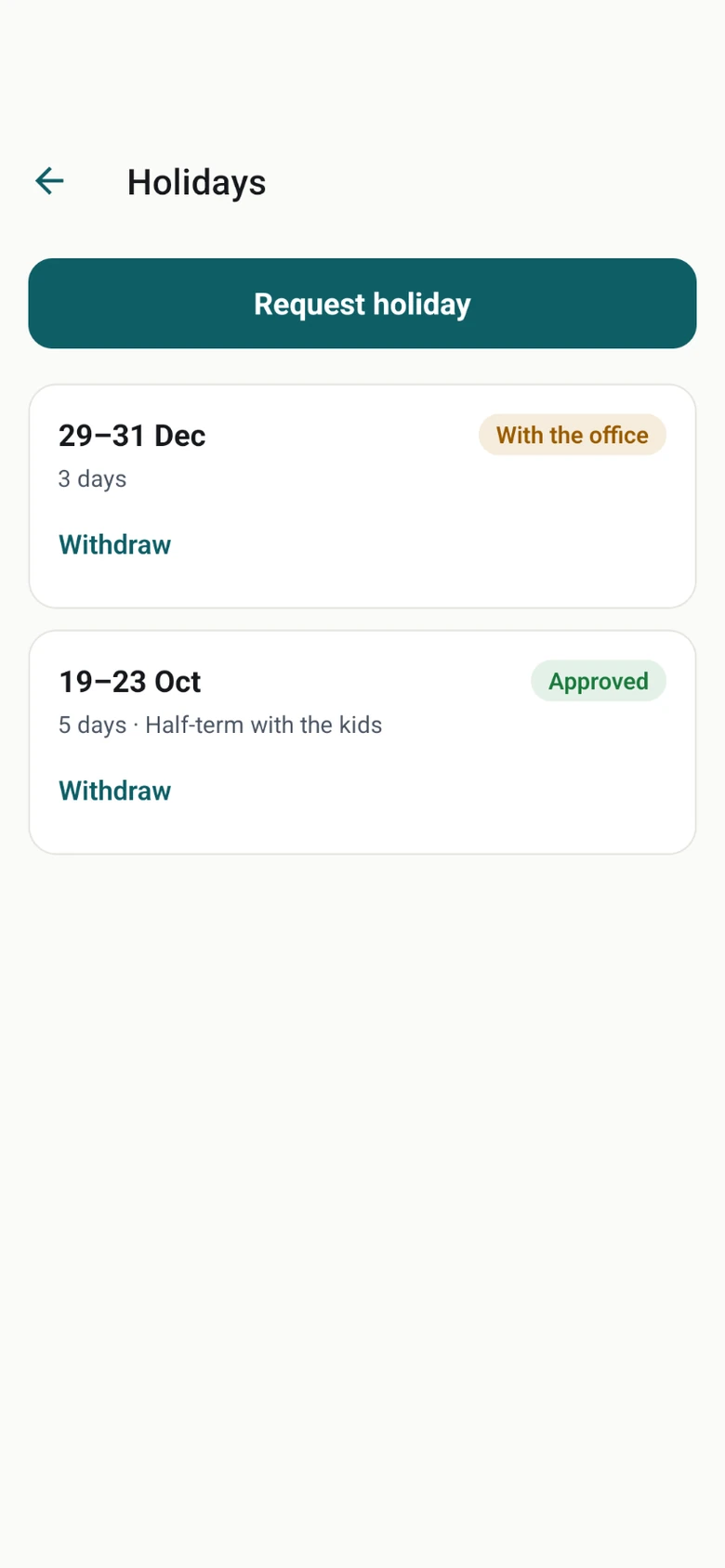
Operatives ask for time off in the app and see straight away whether it's with the office or approved. The office decides on the dashboard, with a calendar of who's off when.

A holiday request on the back of a timesheet, or a text to the contracts manager, gets lost. In the app the operative taps the first and last day off, adds a note if they want to, and sends it. With no signal it's saved on the phone and sent later, like everything else. The phone shows where it stands: with the office, approved or declined.

The office sees every request waiting for a decision, oldest first, and a calendar of approved leave by person. Declining a request needs a reason, and the operative reads that reason on their phone. The office can also add leave itself, and export the lot as a CSV.

Anyone who clocks in on a day they've booked off isn't stopped. The clock-in goes to the flag queue, so the office can sort it out.

  • Request, track and withdraw holiday from the phone
  • Declining needs a reason, and the operative sees it
  • A calendar of who's off when, and a CSV export
Click Workforce holidays screen with one request with the office and one approved

Pick the days and send it to the office

Ask once. See the answer on the phone.

11My hours

Their week, on their phone.

Operatives see their own hours for the week in the app: each day's shifts, when they clocked in and out, the hours for each day and the total for the week.

Ask someone on a Friday what time they started on Tuesday and you'll get a guess. In the app, My hours sets out the week for them, a day at a time.

Each day shows its shifts, with the time they clocked in and the time they clocked out, and the hours for that day. Then the total for the week.

  • Each day's shifts, with clock-in and clock-out times
  • The hours for each day
  • The total for the week

The week's total, and every shift behind it

Their own hours, without ringing the office.

12Site notes

Tell the office what happened, with photos.

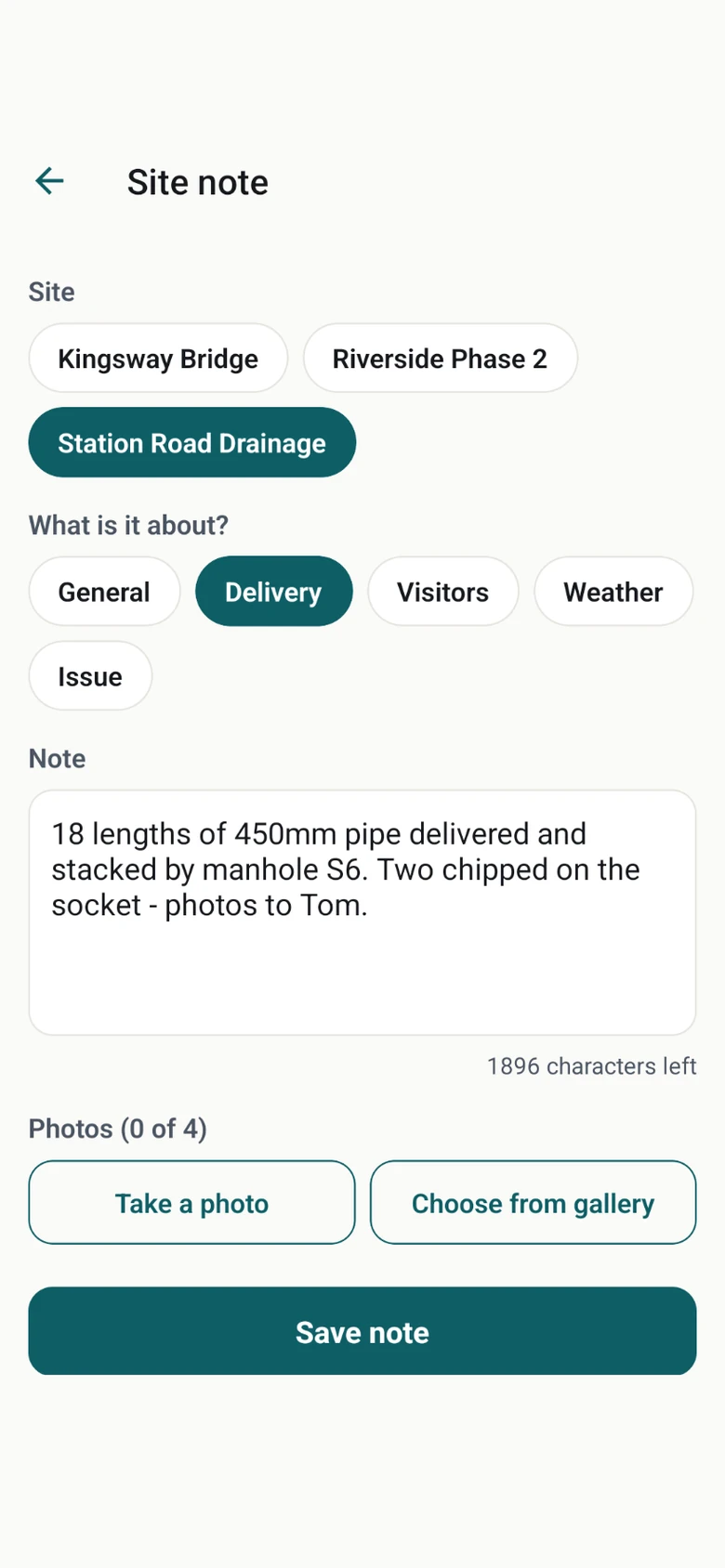
A delivery, the weather, a visitor, a problem. Operatives write a short note against the site from their phone and attach up to four photos. The office reads it in the site diary.

Most of what happens on site never reaches the office, or reaches it as a voicemail. A site note takes a minute: pick the site, pick what it's about, write a line, take a photo of the damaged pipe or the full skip. With no signal it's saved on the phone and sent later.

Notes are kept as the site diary, day by day, alongside notes the office adds. The office can filter the diary and download it as a PDF. Notes can't be edited or deleted afterwards, by anyone, so the diary stands up as a record if a delivery or a delay is ever disputed.

  • Tagged as general, delivery, visitors, weather or issue
  • Up to four photos with each note
  • Kept as the site diary, with a PDF download, and never edited after the fact
Click Workforce site note screen recording a delivery against a site, with space for photos

Pick the site and what it's about

A line and a photo, straight into the site diary.

13Site directory

Who to call, on every site.

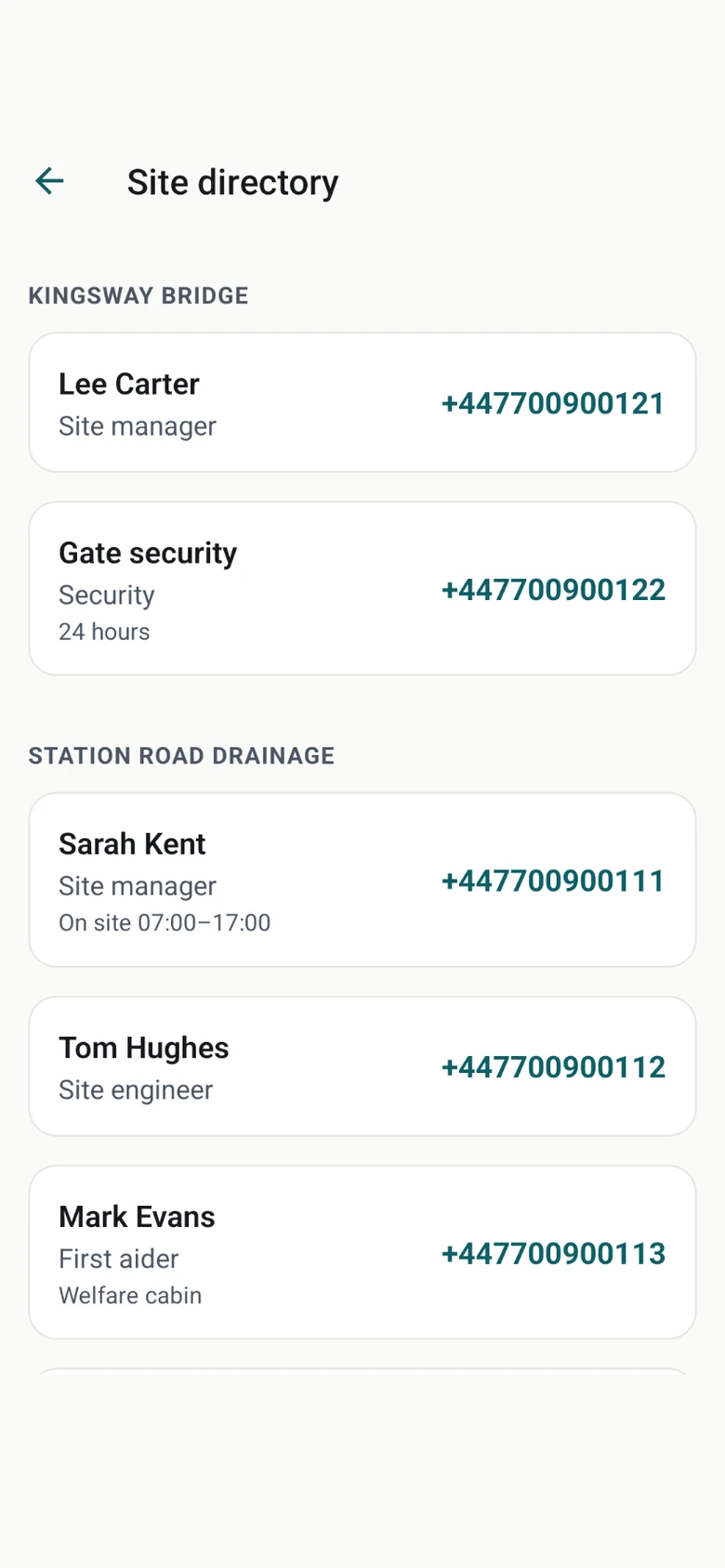
Each site has its own list of contacts: the site manager, gate security, the first aider. Operatives see it on their phone and tap a number to ring it.

A new start on a new site shouldn't have to ask around for the site manager's number. The office keeps a short list of contacts for each site on the dashboard, with a role and a note such as hours or where to find them.

On the phone the list is grouped by site, with the site they're clocked in at first. It's kept on the phone, so it works with no signal, and every number is one tap from the dialler.

  • Contacts grouped by site, with their role
  • A note for each, such as hours or where to find them
  • Tap a number to ring it
Click Workforce site directory listing who to call on each site, with tap-to-call numbers

Tap a number to ring it

The site manager's number, without asking around.

14Deliveries

What's due at the gate today.

The office lists the deliveries due at each site. Supervisors and managers see the day's deliveries for the site they're at, and mark each one delivered when it arrives. The office sees it on the dashboard straight away.

On the dashboard, the office adds the deliveries due at each site: what it is, a category, the amount, the date, the supplier and the purchase order number.

In the app, supervisors and managers see each day's deliveries for the site they're at. If they're sent to another site to take a delivery, they can switch to it. Each delivery shows its PO number, so whoever's at the gate can check the paperwork. When it arrives, they mark it delivered on their phone and the office sees it on the dashboard straight away. The office can mark it delivered too, and a mistaken tap can be undone.

Deliveries is switched on per company and set up as part of your contract, so talk to us.

  • What, how much, when, from which supplier, and the PO number
  • Marked delivered at the gate, seen in the office straight away
  • Switch site when you're sent somewhere else to take a delivery

The PO number, to check against the paperwork

Ticked off at the gate. Seen in the office.

15Drawings

The current revision, on every phone.

The office uploads site drawings as PDFs, each with its number, title and revision. A new revision replaces the old one on every phone. Once a phone has opened a drawing, it opens again with no signal.

On the dashboard, the office uploads each drawing as a PDF with its drawing number, title and revision, such as P01, C02 or Rev B. Upload a new revision and it replaces the old one on every phone. Earlier revisions stay in the drawing's history on the dashboard, and a drawing that's been superseded can be withdrawn so it isn't used.

Managers see every site's drawings in the app. Supervisors see the drawings for the site they're on, whether they're clocked in there or standing on it. Supervisors and managers choose which operatives see which drawings, from the app or the dashboard, and those operatives get a Drawings tile in their app. Sharing follows the drawing, so when a new revision is uploaded, everyone it's shared with sees the new one.

Once a phone has opened a drawing, it opens again with no signal. Pinch to zoom, and turn the phone sideways to read it in landscape. Drawings is switched on per company and set up as part of your contract, so talk to us.

  • Number, title and revision on every drawing, with its history on the dashboard
  • A new revision replaces the old one for everyone it's shared with
  • Opens with no signal once it's been opened, with pinch to zoom and landscape

Always the current revision

Opened once, it opens again in the cutting.

16Plant

Every item of plant, its certificates and its cost.

Every item of plant on the dashboard, hired or owned, with its site, its weekly cost, its safety certificates and its service history. Servicing can be recorded from the app, with photos of the work. Managers can off-hire an item from the app, and the office is reminded before a certificate runs out.

On the dashboard, each item has its plant ID or hire number, its type, such as "360 Excavator 14T GPS", a category, the supplier, whether it's hired or owned, the cost per week, the site it's on, the date it went on hire, and a photo. Each item keeps its safety check certificates, as a PDF or a photo with an issue date and an expiry, and its service history: the date, the hours or mileage, the work done, who did it, its condition, and up to five photos of the work.

The people who service the plant don't need to run the register. Make a role, such as "Engineer", that can add service entries and nothing else, and give the engineer a dashboard login with it. They add entries on the dashboard, or in the app once that login is linked to their app account: Manager, then Plant, then the item, then Add service. The photos show with each entry in the item's service history.

In the app, supervisors and managers see the plant on the site they're at, or on any other site, with the weekly hire total, and can open the certificates. Managers can off-hire an item from the app, adding a photo or document if they need to. That sends an email to the office staff your company has chosen, with the item's details, and copies in the manager, so replies go to everyone. The office marks it off-hired when it's collected.

The people on that email list also get a reminder 30 days and 7 days before a certificate runs out, and on the day it does. Plant is switched on per company and set up as part of your contract, so talk to us.

  • Hired or owned, with its site, its cost per week and a photo
  • Servicing recorded from the app or the dashboard, with up to five photos
  • Off-hire from the app, and reminders before a certificate runs out

Certificates and their expiry, item by item

What's on hire, where, and what it costs a week.

17Notifications list

Every update from the office, in one list.

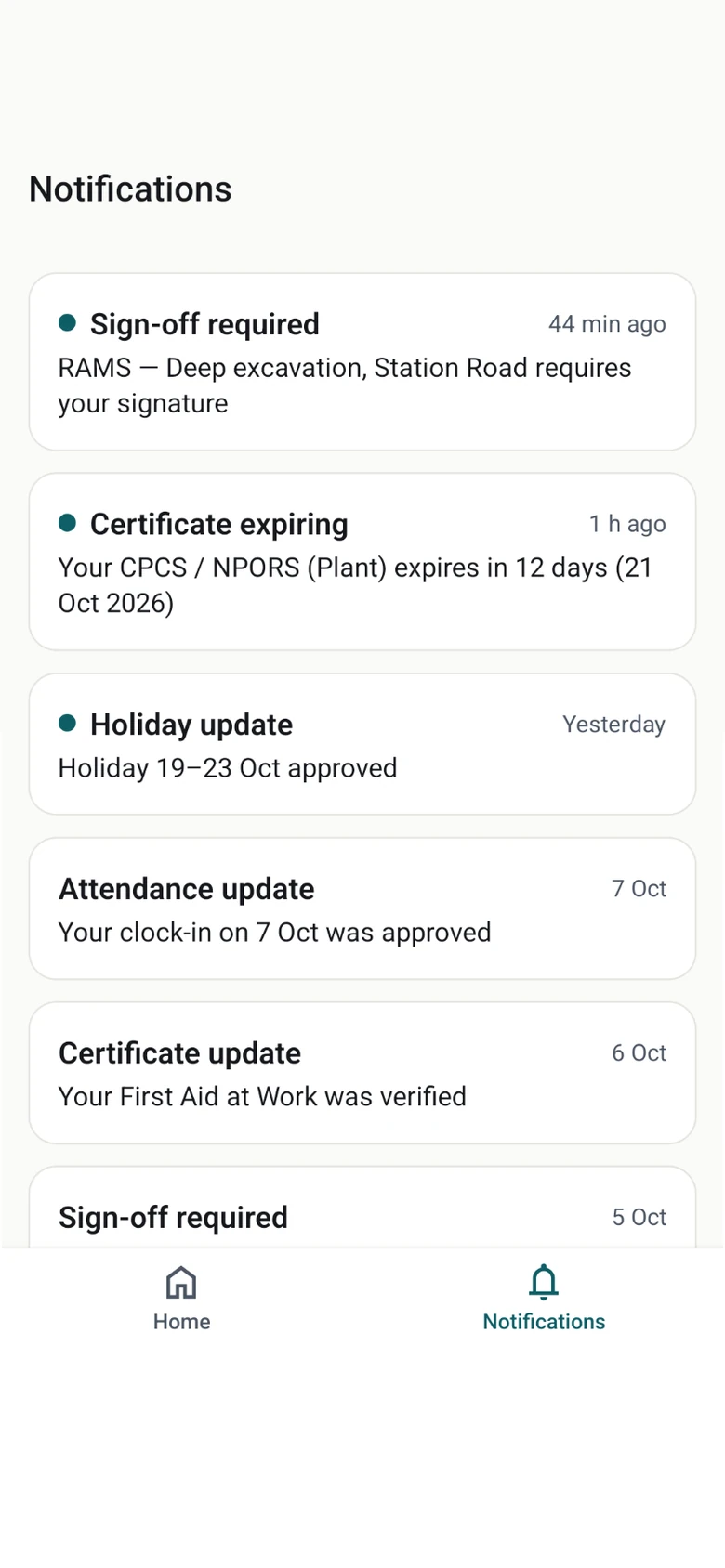
A Notifications tab keeps every update the office sent: a document to sign, a decision on a flagged clock-in, a card checked, a holiday decided, a card about to run out. A missed notification no longer means a missed message.

A notification on a phone is easy to swipe away, and then it's gone. In the app, every update the office sends is also kept in the Notifications list, at the bottom of the screen next to Home, with a badge counting what's unread.

Tap an entry and it opens the matching screen: the document to sign, the holiday, the card. The phone keeps its last copy of the list, so it opens with no signal. Entries are kept for 90 days.

  • Documents, clock-in decisions, card checks, holidays and expiring cards in one list
  • Tap an entry to open the matching screen
  • Opens with no signal, and keeps 90 days of updates
Click Workforce notifications list with three unread updates from the office: a document to sign, a card expiring and a holiday approved

Every update from the office, kept here

Swipe a notification away and the message is still there.

18Profile photos

A face to every name.

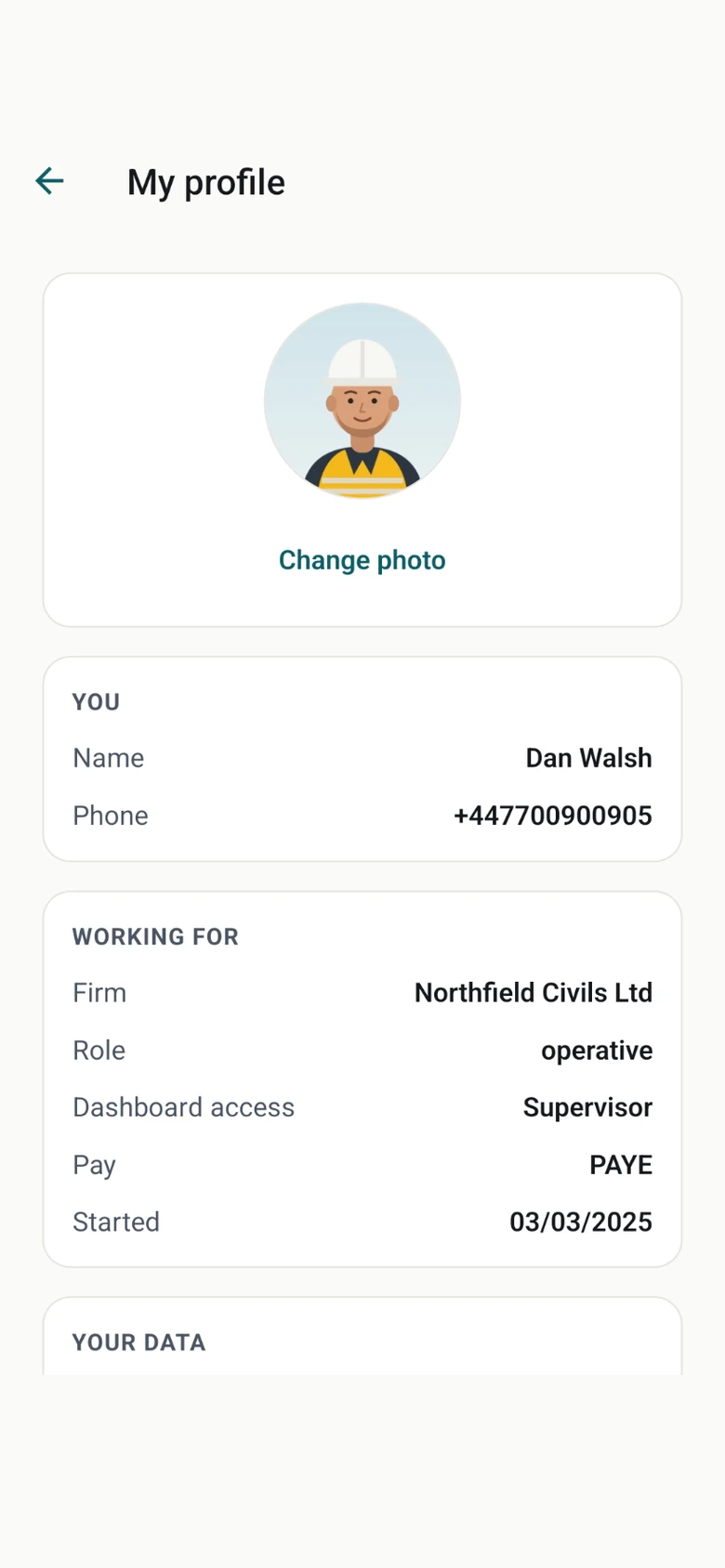
Operatives add their own photo in My profile, from the camera or their photo library. The office sees it next to their name: in People, on the live view, and in the flag queue.

The photo shows on the operative's Home screen straight away. On the dashboard it sits next to their name in People and in the on site now view. In the flag queue it sits beside the clock-in photo, so a supervisor can compare the two by eye.

If a photo isn't good enough, an admin, manager or office user can remove it. That hides it for your company only, and the operative's app asks them for a new one. Like their cards, the photo goes with the person to any other firm that uses Click Workforce.

It's a photo for people to look at, nothing more. No software compares or analyses it, and there is no face recognition.

  • Added from the camera or the photo library
  • Beside the clock-in photo in the flag queue
  • Shown to people only, never compared or analysed by software
Click Workforce My profile screen with the operative's photo, a Change photo button and Dashboard access: Supervisor

Their own photo, from the camera or library

The office knows who's who on site.

19Promote from within

Make a supervisor of your best operative.

An admin can give an operative a dashboard login as a supervisor, manager or admin, or in one of your own custom roles, from People on the dashboard. They keep clocking in on their phone as before.

Promoting someone shouldn't mean a second account or starting from scratch. From People, an admin picks the person, chooses the role and enters their work email. The role can be supervisor, manager or admin, or a custom role, such as an engineer who records plant servicing. They get a login to the office dashboard, and the app on their phone carries on as it was. They stay one person, with one login linked to their app account.

Their My profile shows the access they have, such as "Dashboard access: Supervisor". You can change the role or remove access at any time. Mark someone as left and their dashboard access ends at the same moment.

  • Promote to supervisor, manager, admin or a custom role, from People
  • Same person, same phone: they keep clocking in
  • Marking someone as left ends their dashboard access too
Click Workforce My profile screen with the operative's photo, a Change photo button and Dashboard access: Supervisor

Dashboard access, shown on their phone

One person, on site and in the office.

20Managers in the app

A manager's section, in the same app.

Anyone with a dashboard role opens a manager section in the app they already use, behind a six-digit PIN. Supervisors, managers and admins see who's clocked in at the site they're at, and can call or text them.

There's no second app. Anyone with a dashboard login, whether a supervisor, a manager, an admin or a custom role such as an engineer, opens the manager section from the same app they clock in with, once that login is linked to their app account. It's locked behind a six-digit PIN.

Who's on site lists who's clocked in at the site they're at. Tap someone to see their profile, and call or text them from there. Managers and admins can add a new employee from the app, with their name, mobile and job title, plus a photo if your company turns that on.

Deliveries, Drawings and Plant live in this section too, for companies that have them.

  • Behind a six-digit PIN, in the app they already use
  • Who's clocked in at the site they're at, with a tap to call or text
  • Add a new employee from the app: name, mobile and job title

Tap someone to call or text them

Who's here, from the cab or the gate.

21Your company, your branding

Your logo on their phones. Your colours, if you want them.

Every company gets its own logo and name in the app. Larger firms can go further with white label: after sign-in, the app shows your logo at the top and uses your colour.

Your company's set-up is entirely separate from every other company's. Your sites, your operatives, your flags, your hours. Nobody else can see them, and you can't see anyone else's.

As standard, your logo appears in the app next to the operative's name, and on the signing registers and site diaries you export.

White label is for larger firms and is set up as part of your contract, so talk to us. After an operative signs in, the app shows your logo at the top in place of ours, and uses your company's colour for buttons, links and the bottom bar. Our name stays only as a small "Powered by Click Workforce" line in My profile.

Some things always stay ours: the green and red of the clock-in button, so clocking in looks the same on every site; the sign-in screen, because the app doesn't know your company until someone signs in; and the store listing, with the app's name and icon on the phone.

  • Your logo and name in the app, as standard
  • White label for larger firms: your logo at the top and your colour, after sign-in
  • Your sites and your people, kept apart from everyone else's

White label: your logo in place of ours

With white label, the app wears your colours after sign-in.

22iPhone and Android

One app, iPhone and Android.

Operatives install it from the App Store or Google Play on the phone they already carry. No handsets to buy. No kit to look after.

  • Download on the App Store
  • Get it on Google Play

The same app on iPhone and Android, so it doesn't matter what's in anyone's pocket. Operatives sign in with a code sent by text message to their UK mobile number. No passwords to remember, nothing to reset.

The screens are built for site: big buttons, short words, readable in sunlight, usable with gloves on. Clocking in takes one tap and a photo.

In My profile, operatives choose Light, Dark or Match phone. Light is the default, because it's the easiest to read in bright sun.

  • Works on the phones your operatives already have
  • Sign in with a code by text message, no passwords
  • Big buttons and short words, made for gloves and sunlight

The same app on iPhone and Android

Install from the store. Sign in by text. Clock in.

Next step

Talk to us about pricing.

Tell us a bit about your firm and we'll come back to you within one working day. There's no price list on the website because it depends on how many operatives you have and how many sites you run.

No sales calls unless you ask for one. We'll email first.

Name, company and a work email is enough to start.